
Note: The cipherscale session created previously by a signed-in user on a Windows device will be shared with another user signed in with administrator privileges on the same device. For example, if person A uses cipherscale on a Windows device and does not log out, person B with admin privileges can log in to the device and launch the cipherscale app, leading to person B sharing the cipherscale session of person A.
-
Choose the Sign in option from the cipherscale system tray or open the app and click the Sign In button.
-
The cipherscale portal will open on your default browser.
-
Enter your cipherscale space name.
-
Click Enter.
-
You will see one or more authentication options.
-
Authenticate.
-
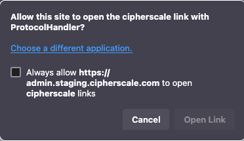
On successful authentication, you will see a popup asking permission to open a cipherscale link.
-
Click the checkbox and click Open Link
-
The cipherscale app will now show the cipherscale space, session duration, and Sign Out button.
NOTE: The app is not brought to the foreground when the user is redirected to the app upon successful authentication.